
Download Moodle: http://download.moodle.org/
Download WampServer: http://www.wampserver.com/en/ – 64 bit
Install WampServer
Change port (I needed to do this, because I was running IIS on 80):
- Left click on the WampServer icon tray, and go to Apache/httpd.conf.
- Search/Replace 80 to 90. Restart all services.
- In /wamp/wampmanager.ini, you can edit the menu options to change the port to 90 for items that you want access to. Search/replace all http://localhost to http://localhost:90.
- Also do this in wampmanager.tpl.
Unzip moodle download to /wamp/www (so /wamps/www/moodle)
Browse to http://localhost:90/ You should see something like this:

Click on the moodle project, and you should get this:

Choose your language and click Next to get:

If the paths are correct, click Next:

Since WampServer installed MySQL, simply click Next:

Note that the default username for mysql in WampServer is root, and the default password is empty. Choose these and use the defaults for the host, database name, and tables prefix. Then click next:
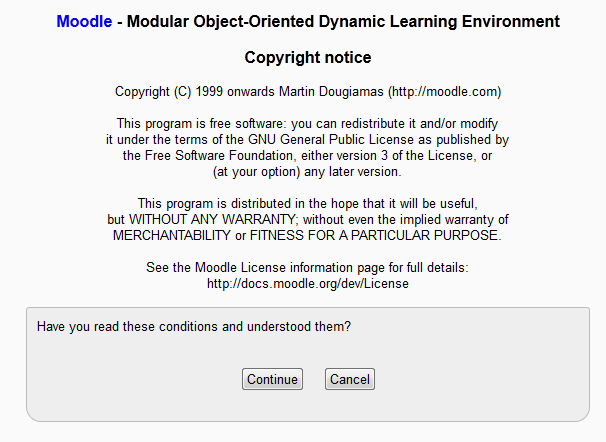
Click continue:
If you didn’t install php extensions, like I didn’t, then you get this:
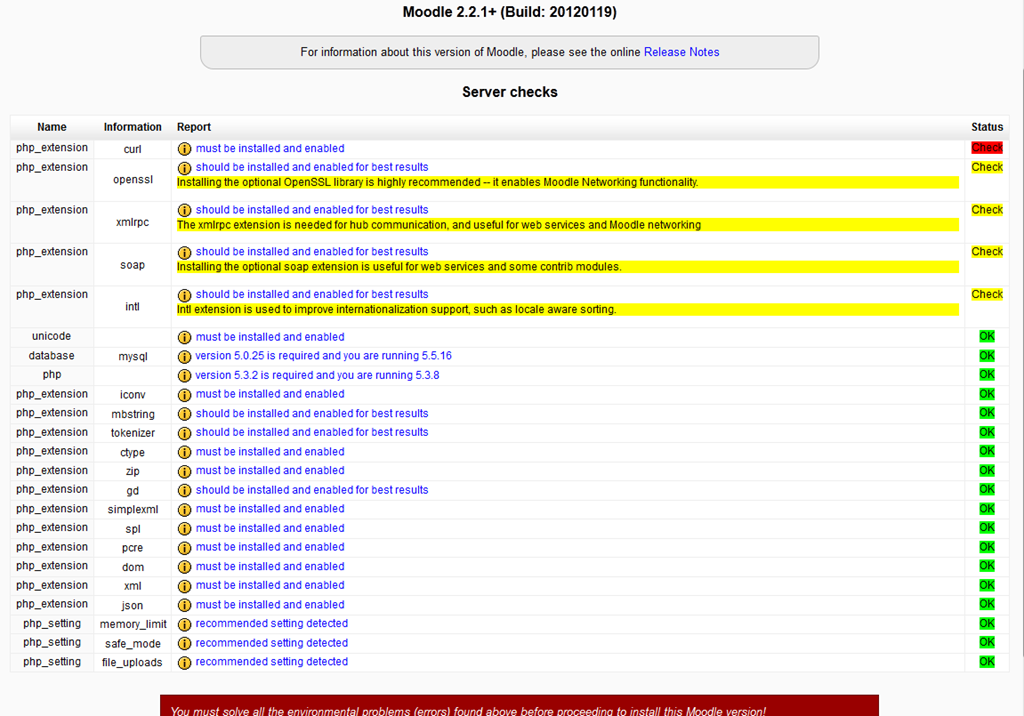
These extensions are easy to install from the WampServer menu:
Go to PHP > PHP extensions. Check the name of each missing extension, 1 at a time. (It appears that WampServer will restart after each install). When you’re done, go back to your browser and click Reload at the very bottom of the page.
Hopefully, you see this at the bottom of your page:

Click Continue. The system will chug away for a while. Be patient. If all goes well, you’ll get another screen looking something like this:
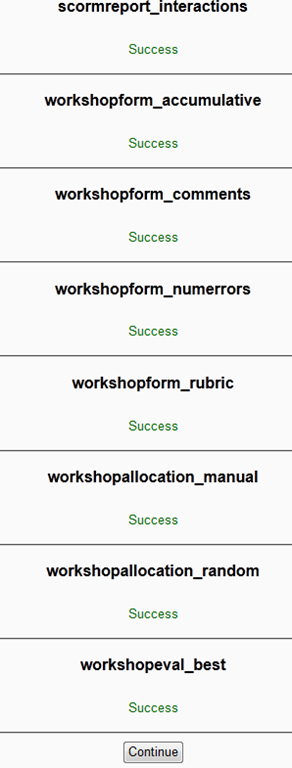
Click Continue. On the next page you simply fill in information about the admin account.
After that you fill in other settings for your site. And TADA, you are done:
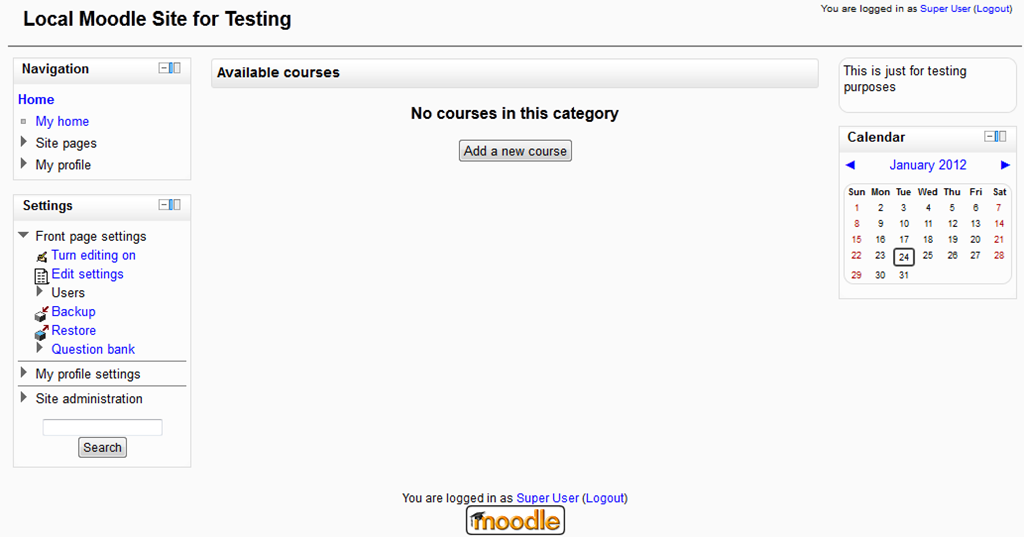
Considering that I have never used WampServer or Moodle before, the fact that I could install this in about an hour is pretty impressive to me.
Relevant/Related links:
http://sixrevisions.com/web-development/install-wordpress-on-your-computer-using-wampserver/
 In the sludgy, squdgy creek
Thank a lot. The post is a great help. works and makes things very easy. Thumbs up!
I have installed Moodle as mention.
But facing problem like
This webpage has a redirect loop
Hey Afzal, verify the permissions of moodledata and delete all files and folders inside the cache, it could be a problem associated to the Windows file permissions.
I have the same problem. Where can I verify the permissions of moodledata?
I found 5 folders with cache, should I delete all of them?
Thanks
So nice !!! Tanks for the help
Your instructions worked perfectly. Thanks so much!
thanx a lot
I tried today with the newest version of Moodle but it ran into an error and continues to tell me that curl needs to be installed (despite following exactly your directions). Any thoughts?
ah…found the error and was able to fix it by using this resource: http://forum.wampserver.com/read.php?2,85716,93286
Great resource, thanks for sharing the process!
Thanks. But why go through all the trouble of installing Apache when the PC already has IIS on it? Moodle runs fine under IIS…
I certainly could have done that, but I was developing for a Moodle install that was running on Apache in production. And in my particular case, setting correct Apache settings was a key part of what I needed to test and get right.
Very good. it works
i installed moodle 2.5 . it got complete package with xammp . it is working properly BUT i dnt know how access the database. i tried using “localhost/xampp” but it’s not working , i dnt know how to access my database .. PLEASE HELP !
@hallisson , thanks for the tip. The redirect loop went away.